Send, counter and accept an offer
Negotiate on structured terms. Every version is kept, so both sides always see what changed.
- 1
Open the Offers tab
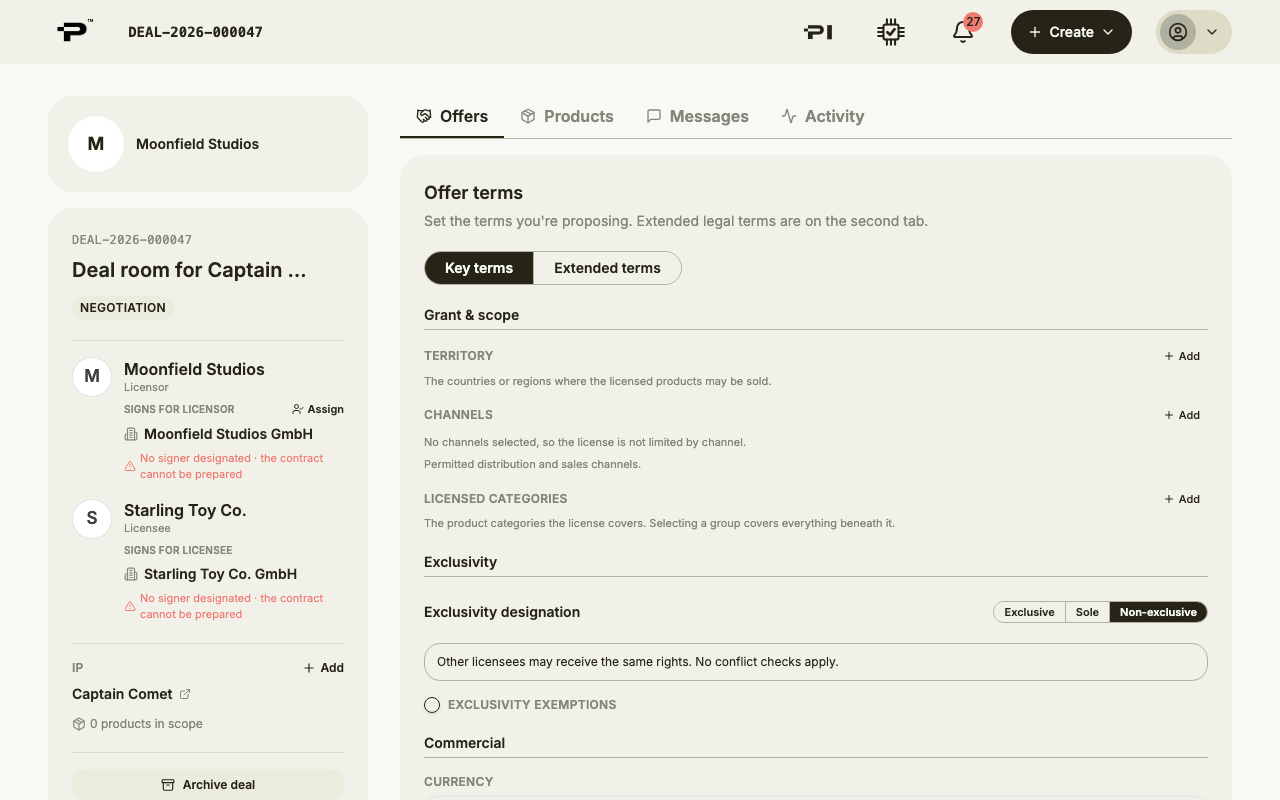
When no offer is waiting for an answer, the Offers tab shows the offer form, headed Offer terms. Key terms holds the commercial deal; Extended terms holds the legal detail.
- 2
Fill in the key terms
Work through Grant & scope, Exclusivity, Commercial, Term, Renewal, Reporting and Approvals. Under Commercial, choose how you are paid: Royalty, MG + Royalty, Advance + MG + Royalty, or Fixed fee.
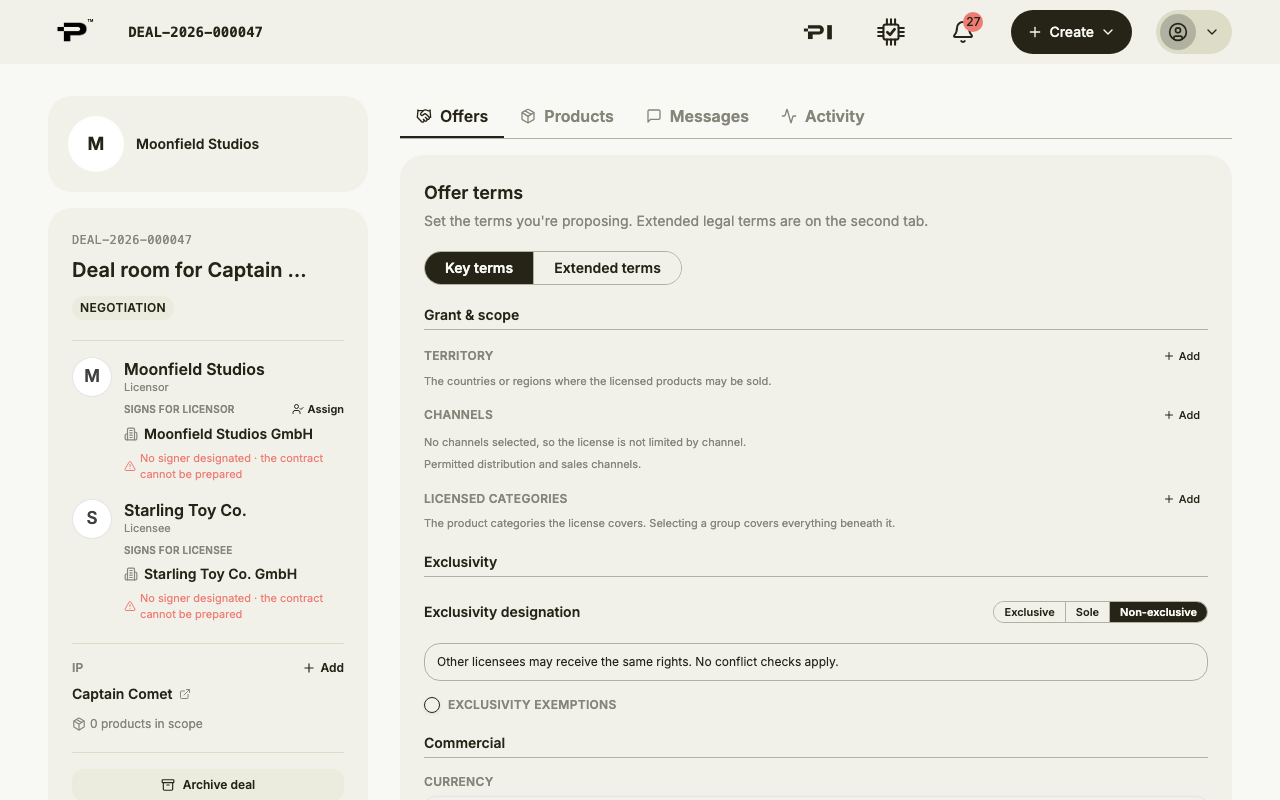 Preview contract shows the agreement these terms would produce, before anything is sent.
 - 3
Submit the offer
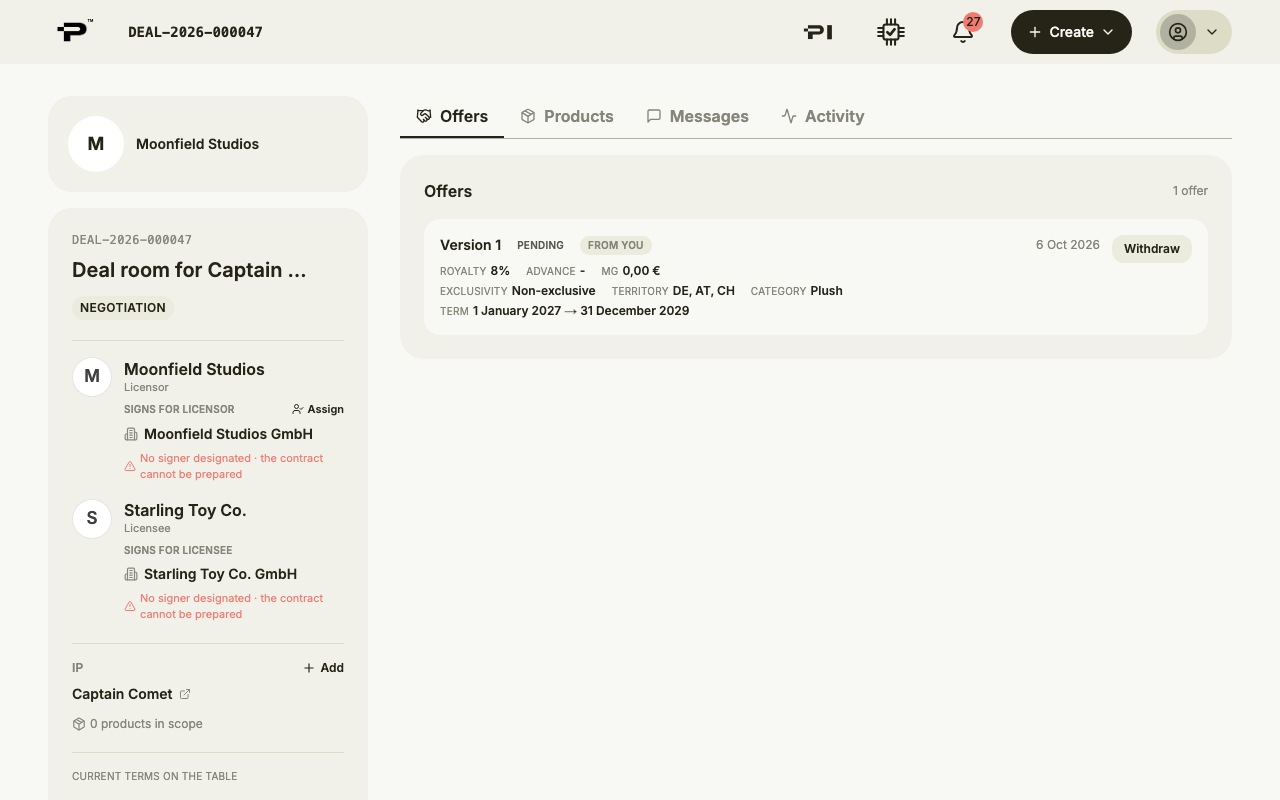
Click Submit offer. It appears in the list as Version 1, marked Pending, and the other side is notified. You can withdraw it while it is pending.
 If the IP lists carve-outs the offer does not reserve, Pazar names them and asks you to add them on Extended terms, or Submit anyway if leaving them out is deliberate.
 - 4
Answer an offer
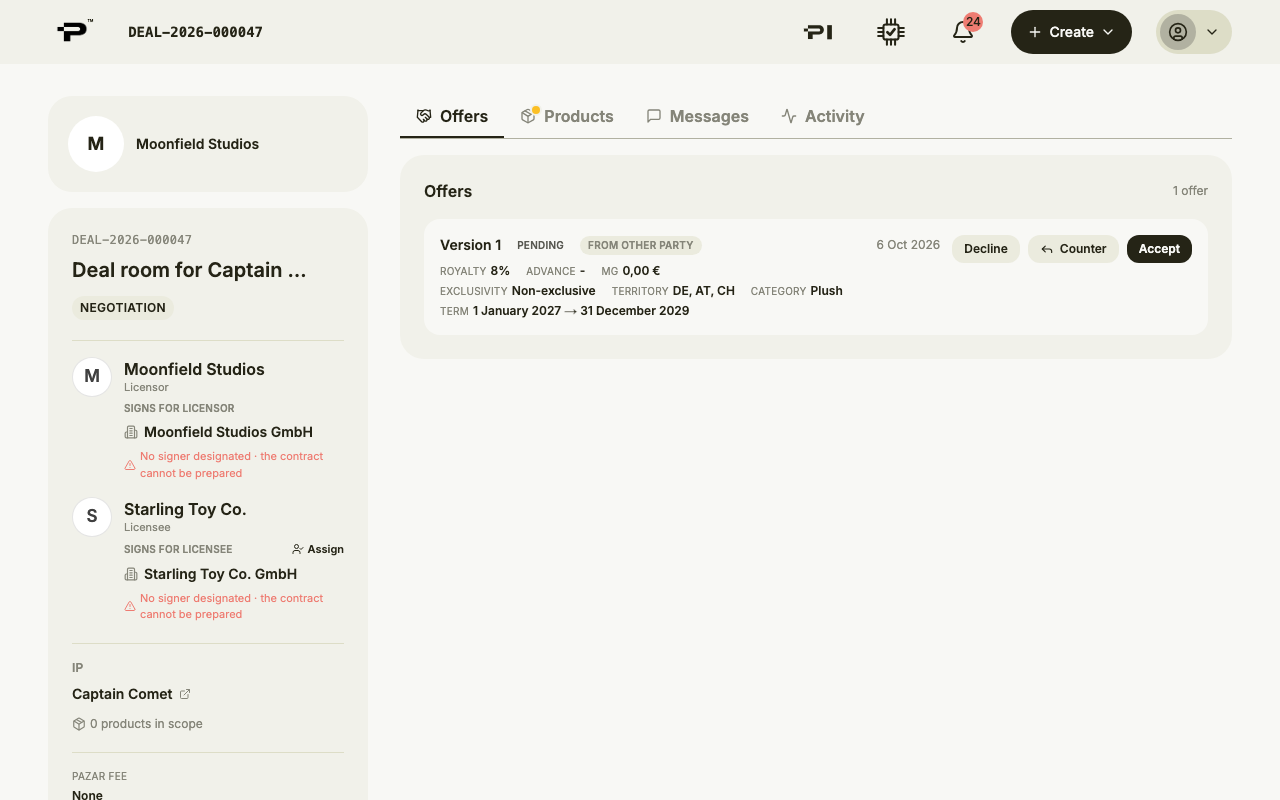
An offer from the other side has Decline, Counter and Accept. Click the offer itself to see every term.
- 5
Counter
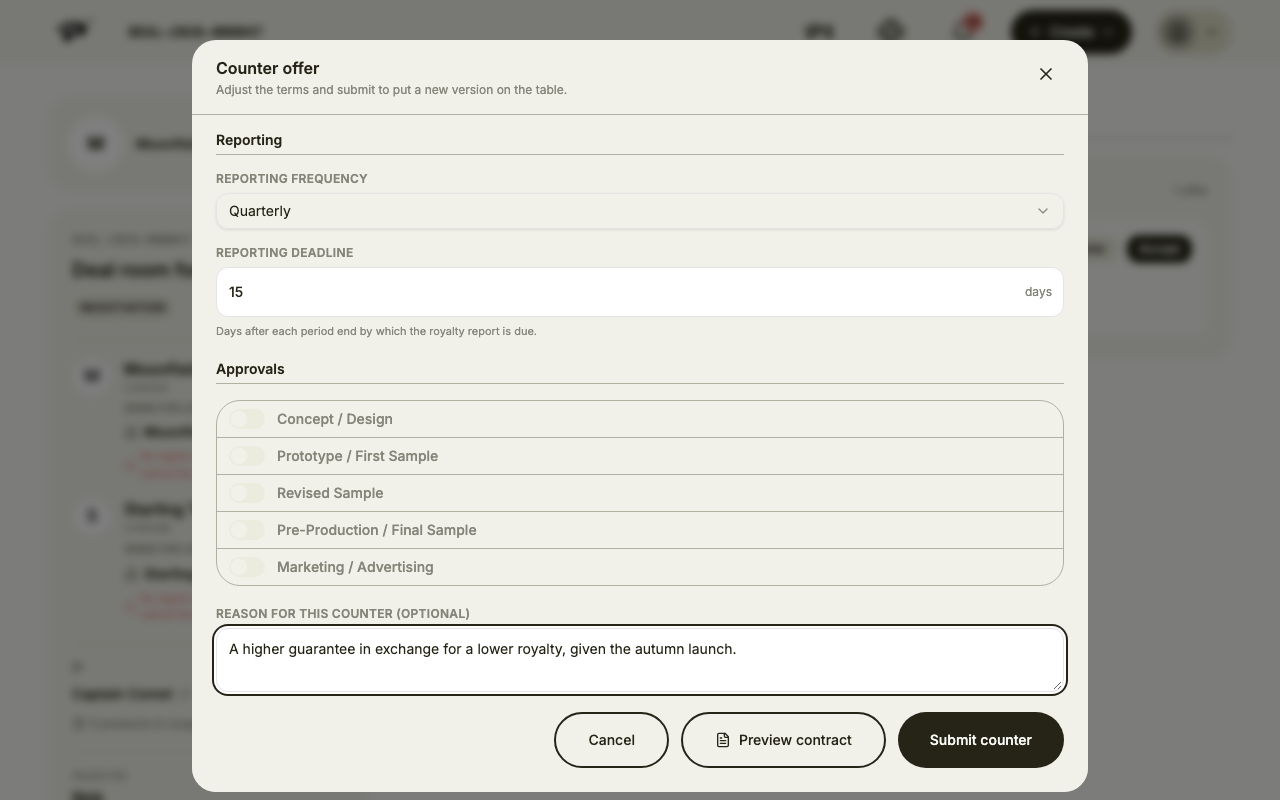
Counter opens the same form, filled in with the offer you are answering. Change what you want, add a reason if it helps, and click Submit counter. The previous offer is marked superseded and stays in the history.
- 6
Accept
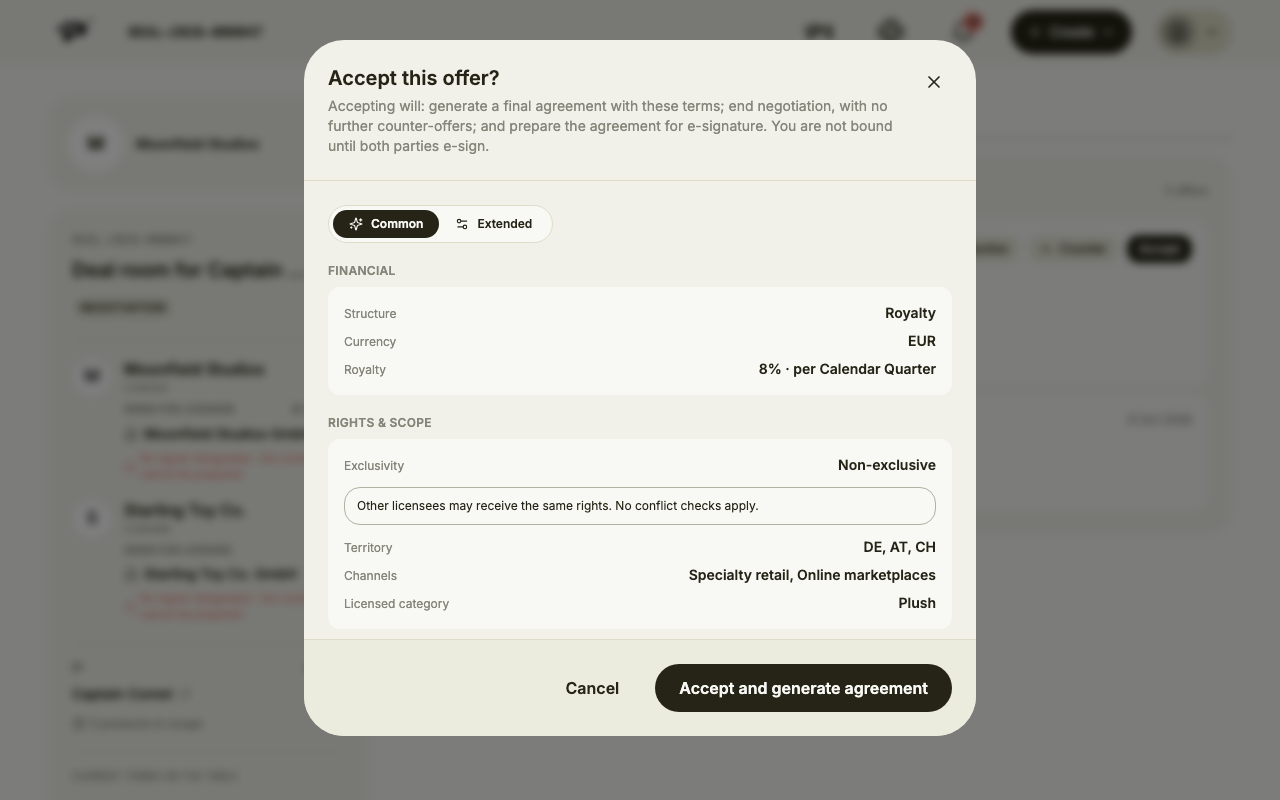
When the terms are right, click Accept, then Accept and generate agreement. Pazar writes the contract from the accepted terms and the room moves on to signing.
Still stuck? Contact us