Open a deal room with another party
A private room where both sides negotiate one license, from first offer to signature.
- 1
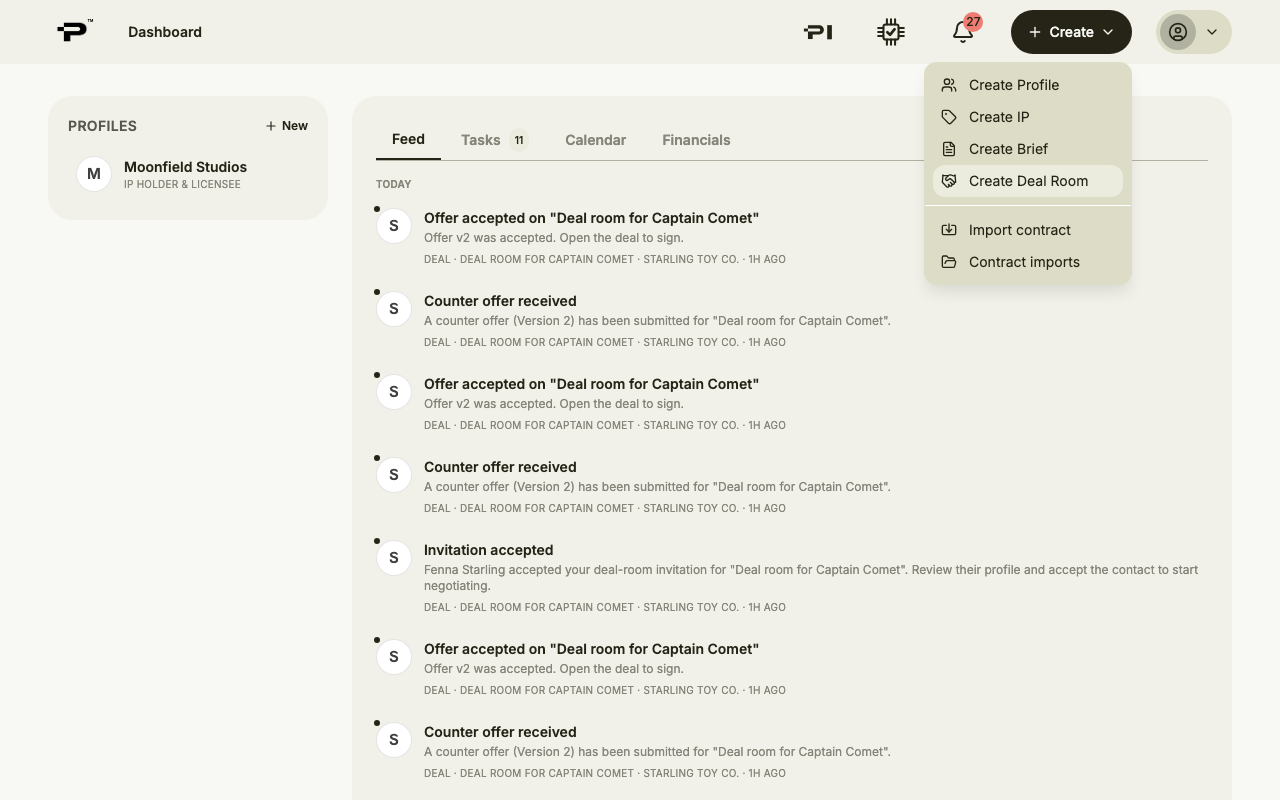
Start from Create Deal Room
Open the Create menu in the top bar and choose Create Deal Room.
- 2
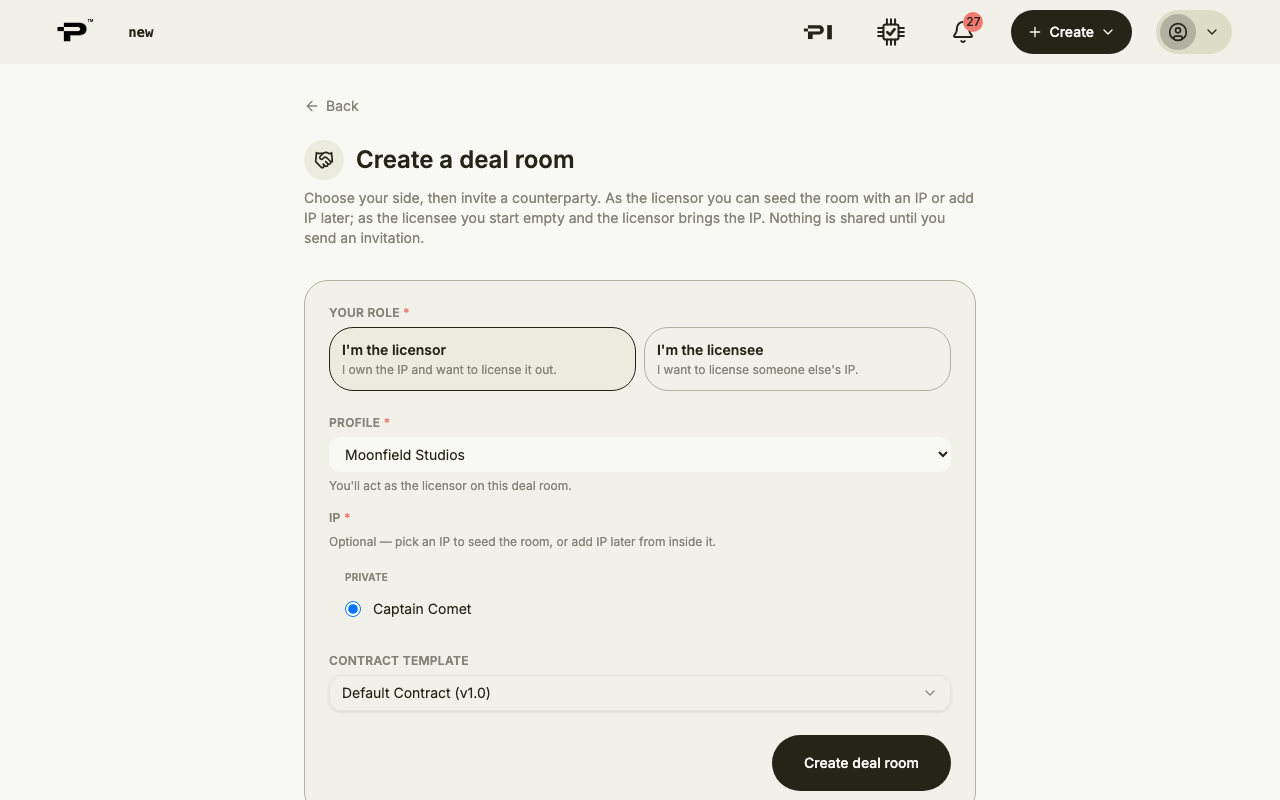
Say which side you are on
Under Your role, choose I'm the licensor if you own the IP, or I'm the licensee if you want to license someone else's. As the licensor you can pick the IP now or add it later from inside the room.
- 3
Create the room
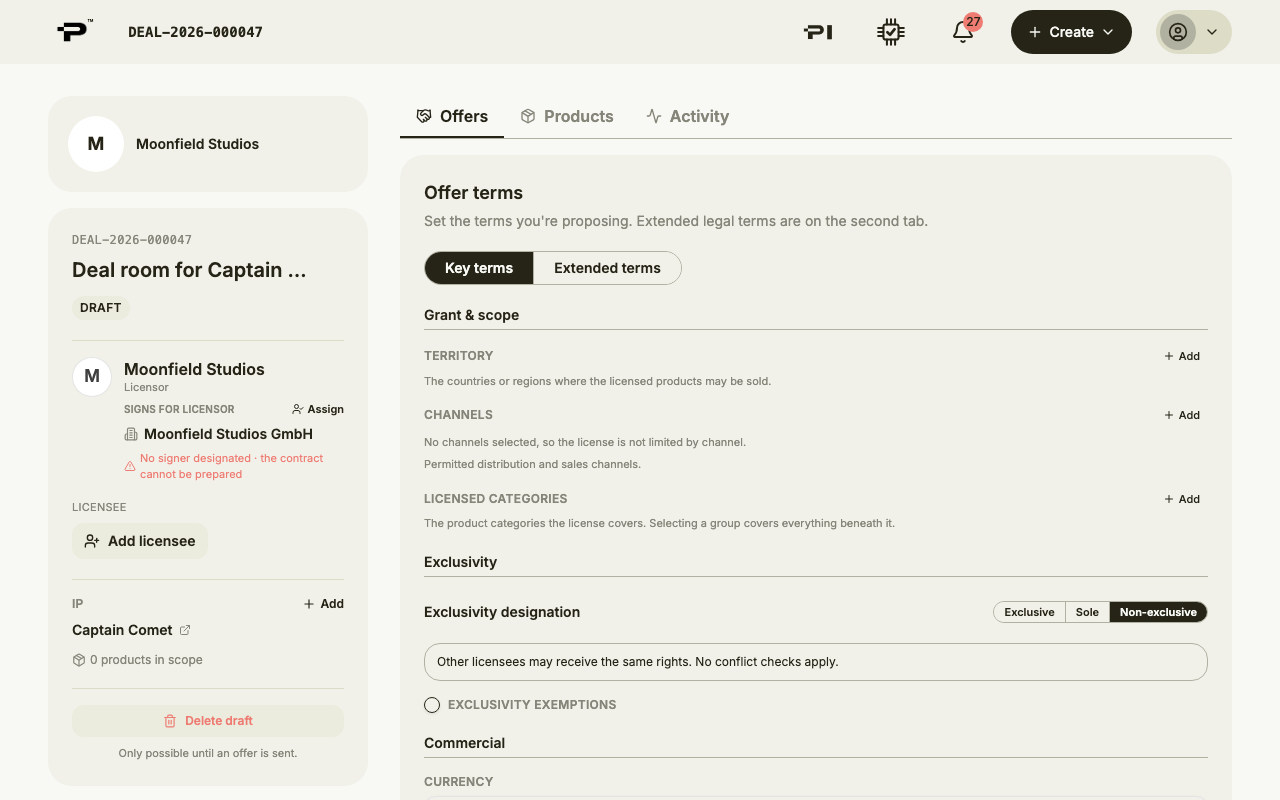
Leave the contract template on the default unless you have your own, then click Create deal room. The room opens as a draft with nobody on the other side yet.
- 4
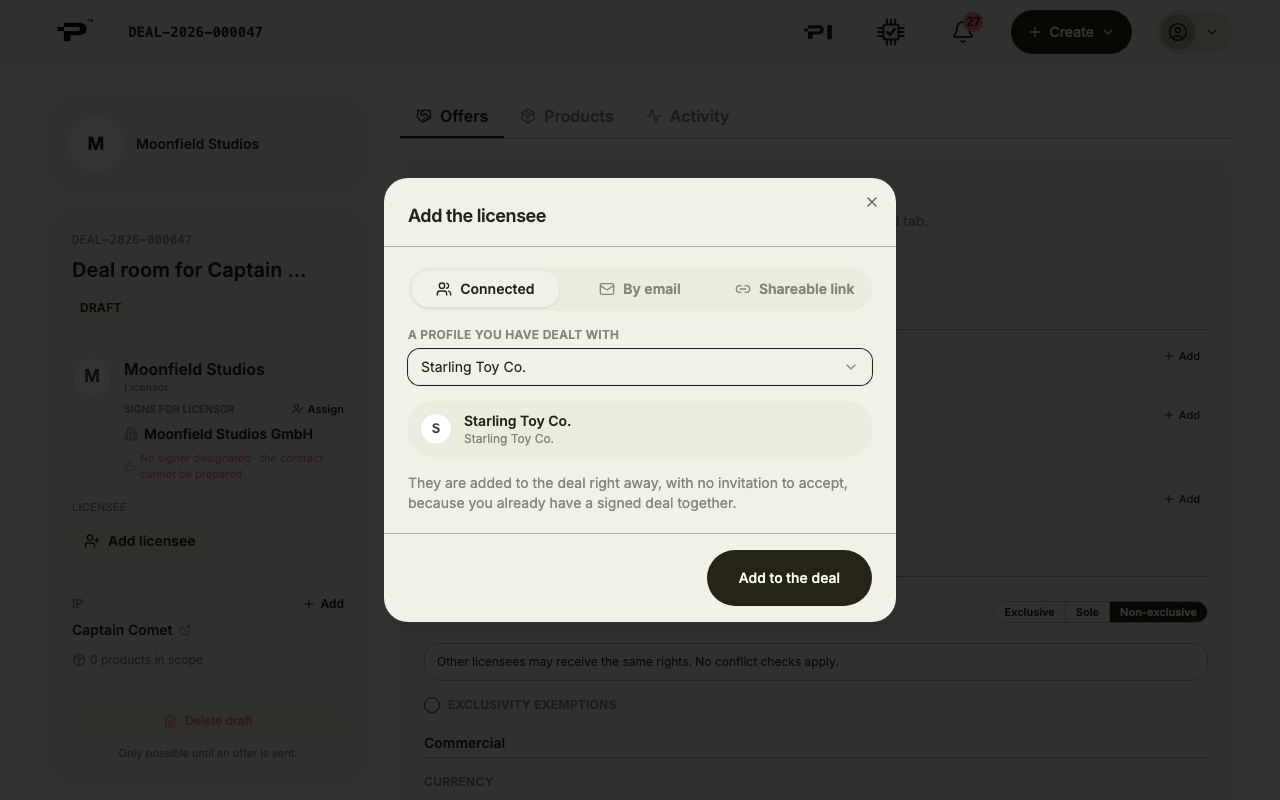
Add the other party
In the sidebar, click Add licensee or Add licensor. Connected adds a profile you have dealt with straight away. By email sends them an invitation. Shareable link gives you a link to pass on yourself.
- 5
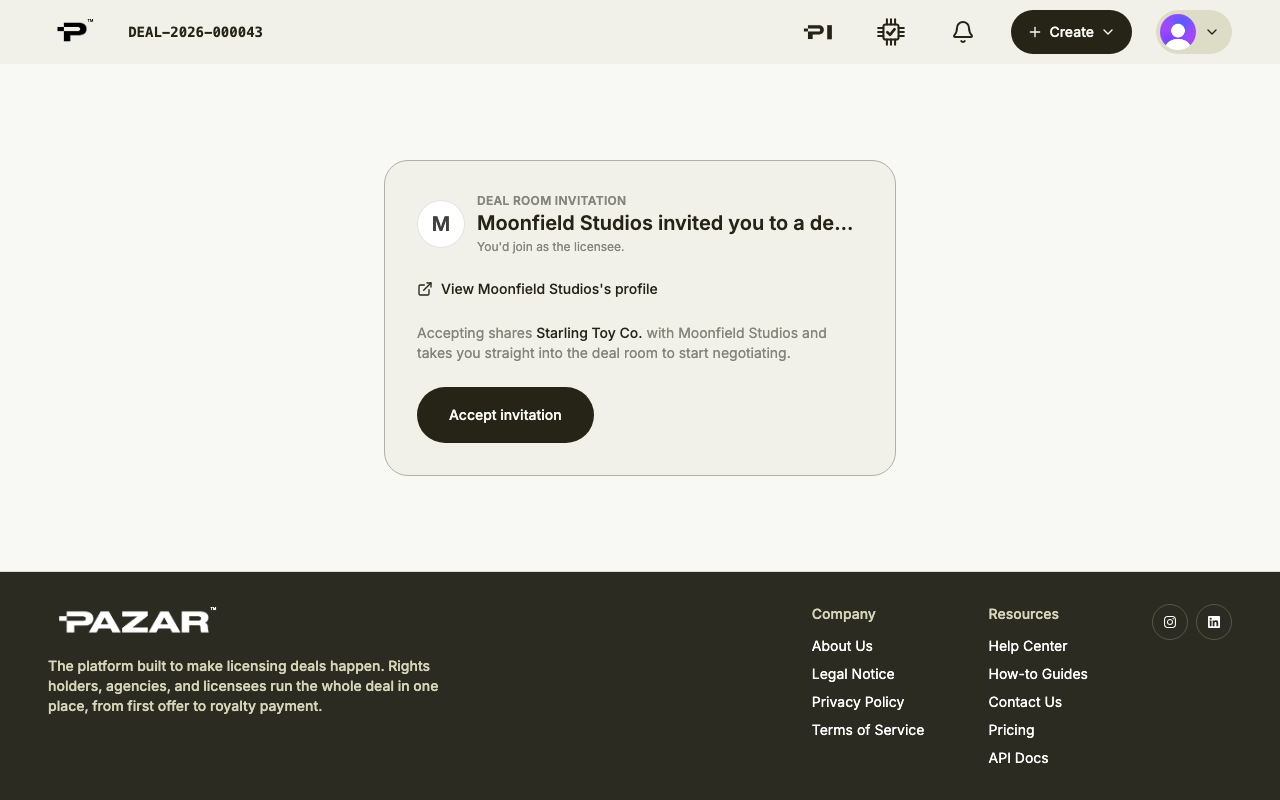
They accept
The other party opens the invitation and clicks Accept invitation. An email invitation has to be opened while signed in with the address it was sent to.
- 6
Start negotiating
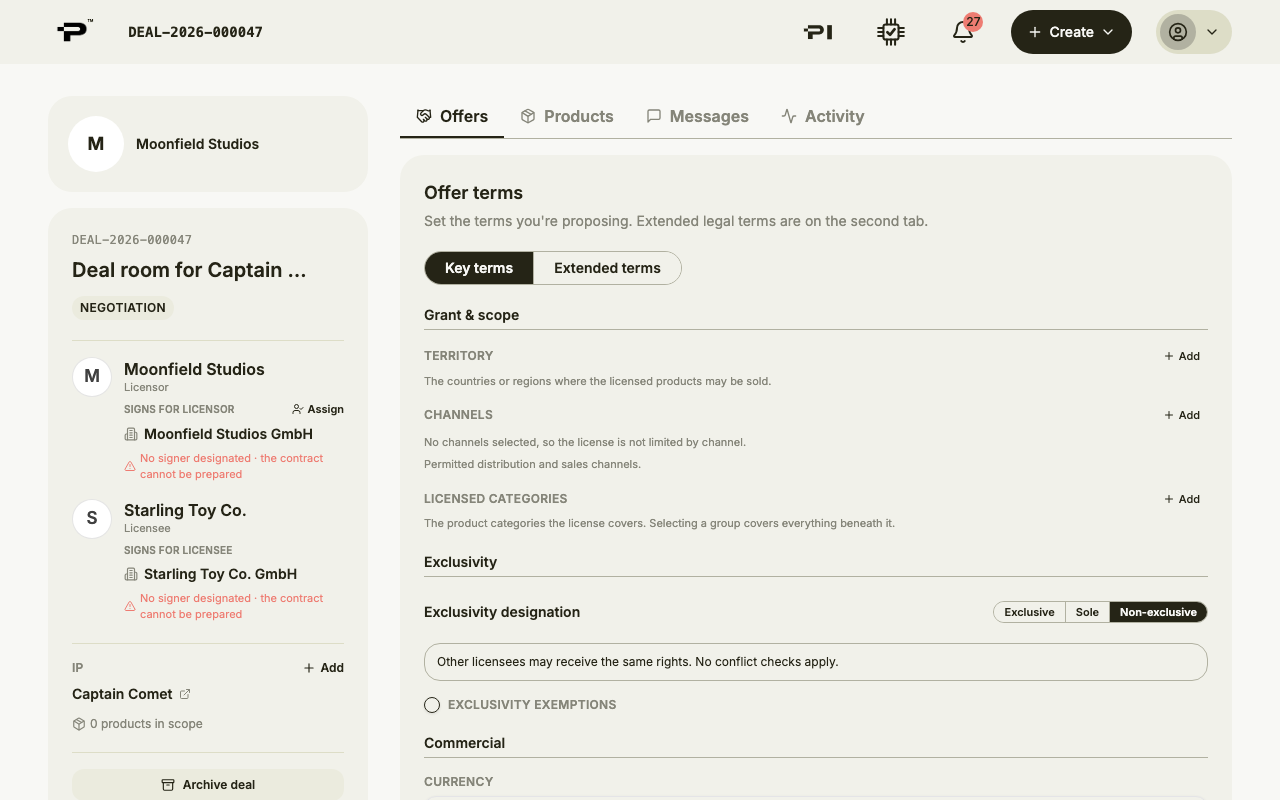
Once they accept, they take the other seat and the room moves to Negotiation. There is nothing for you to confirm: the room is ready for offers.
Still stuck? Contact us