Give another organisation a role on your profile
Let an agency, a partner or a back office run part of your profile, from deals to signing and royalties.
- 1
Know the roles
Viewer sees the profile. Representative runs it on your behalf: catalogue, briefs, deals and the profile itself, but cannot sign, invoice, approve, or change who else has access. Signer, Controller, Approver and Agent are held by one organisation at a time: Signer signs contracts, Controller raises invoices and accepts royalty reports, Approver approves products, and Agent represents the profile to counterparties.
- 2
Invite with roles
On the Access tab, click Invite organisation and pick the roles to give them. Each role's description appears under the role buttons. Click Send invitation.
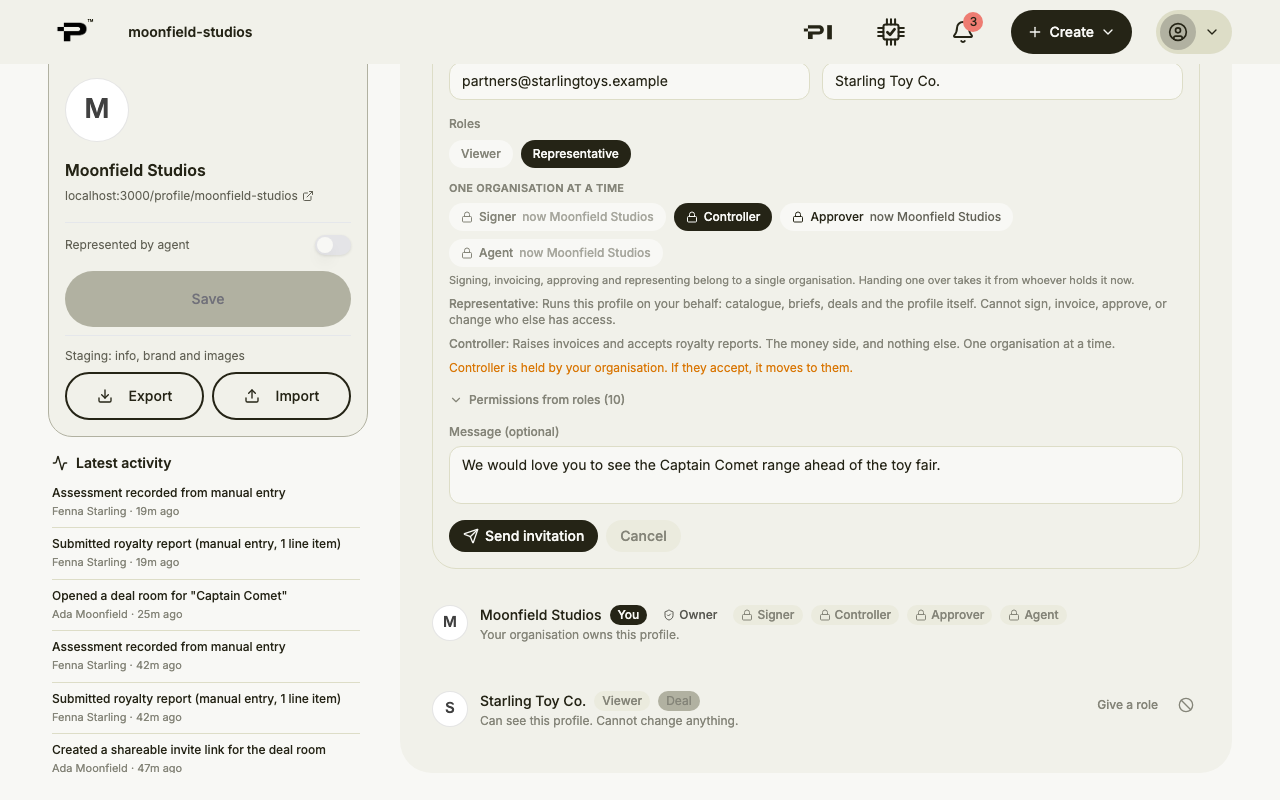 Signer, Controller, Approver and Agent unlock once Representative is selected. A viewer cannot also hold them.
 - 3
What they see
Their invitation asks them to help run your profile and lists what their organisation will be able to do. Everyone at their organisation gets that access, and you can revoke it at any time.
- 4
Change an organisation's roles
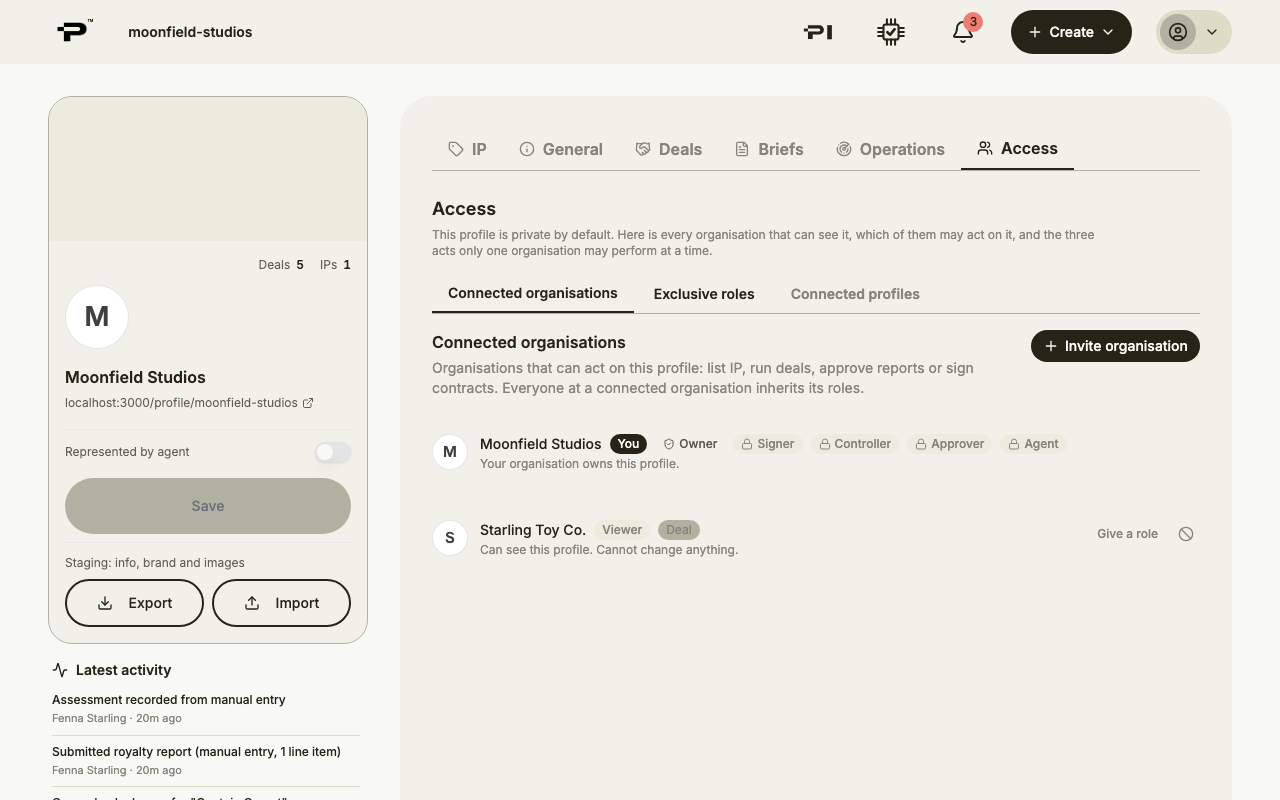
On the organisation's row under Connected organisations, click Roles, or Give a role if they can only view. Each role you click is saved straight away. Click Done when you are finished.
- 5
Hand over a one-at-a-time role
The Exclusive roles view shows who holds Signer, Controller, Approver and Agent. Click Hand over on a role, then click the organisation that should take it.
- 6
Remove or block
On an organisation's row, the remove button takes their roles away and leaves them able to view. Block hides the profile from them completely. Blocked organisations are listed under Blocked, with Unblock.
Still stuck? Contact us