Get products approved
Licensees submit designs and samples stage by stage; the licensor approves, asks for revisions or rejects.
- 1
Open the Approvals tab
After signing, open the deal's Approvals tab. Each product moves through the approval stages separately, for example Concept / Design, Prototype / First Sample and Pre-Production / Final Sample.
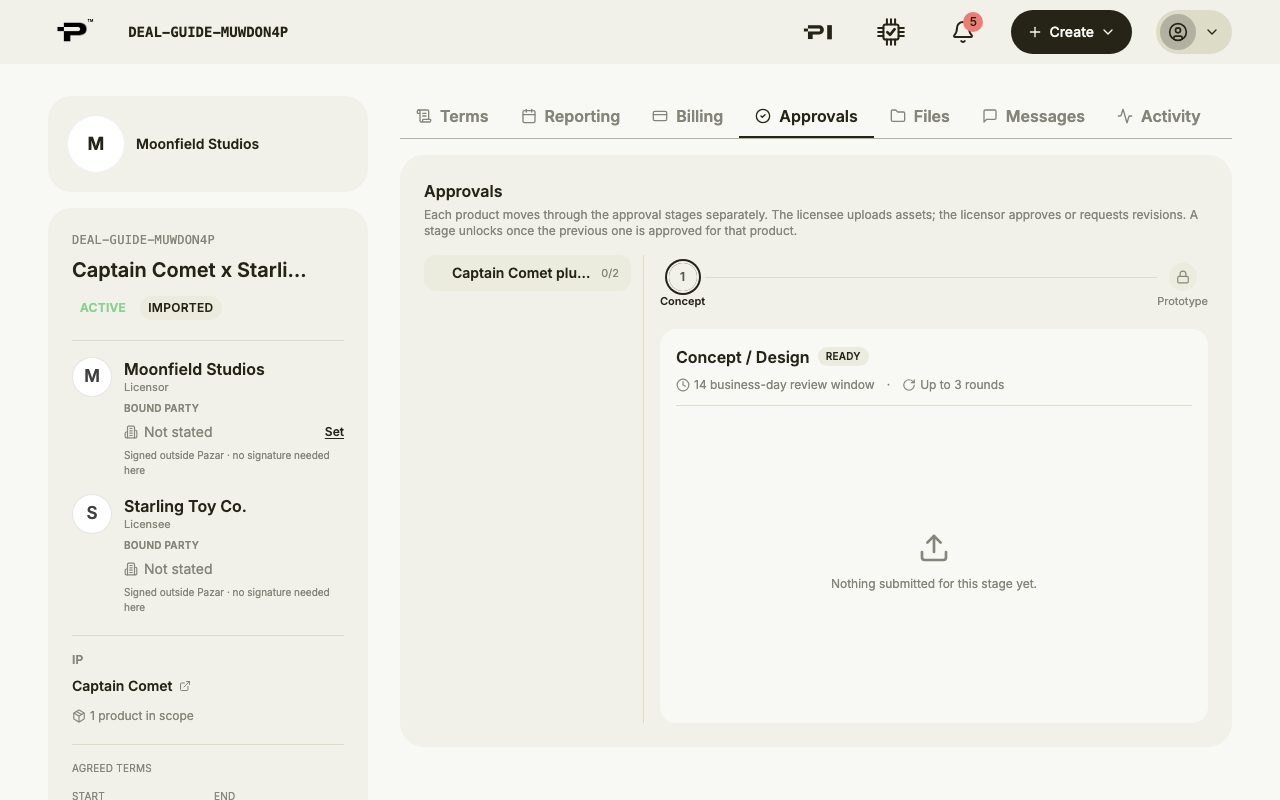 The stages come from the contract, so yours may differ.
 - 2
Licensee: submit for a stage
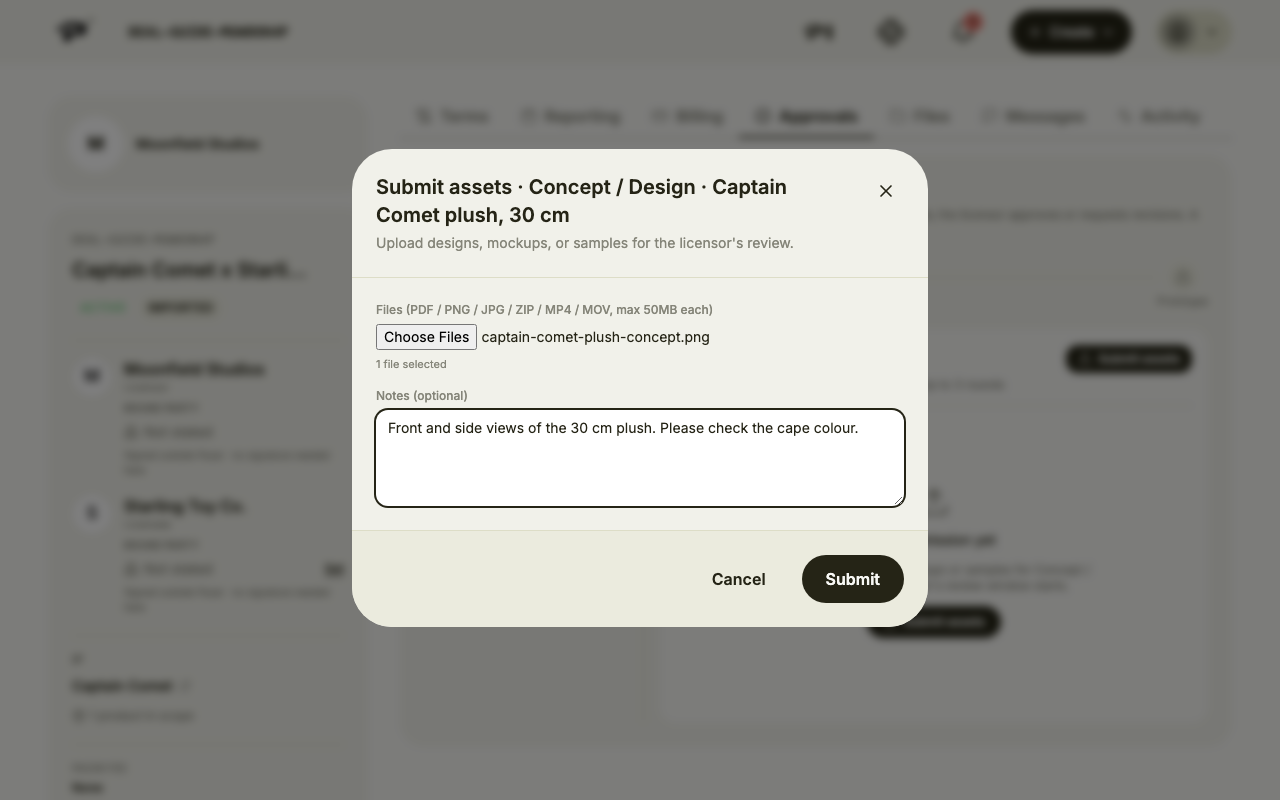
On the stage that is ready, click Submit assets. Add files (PDF, PNG, JPG, ZIP, MP4 or MOV, up to 50 MB each), a note on what to look at, and click Submit.
- 3
Licensor: review
Under Your review, choose Approve, Request revisions or Reject. Requesting revisions or rejecting asks for a reason, which the licensee sees.
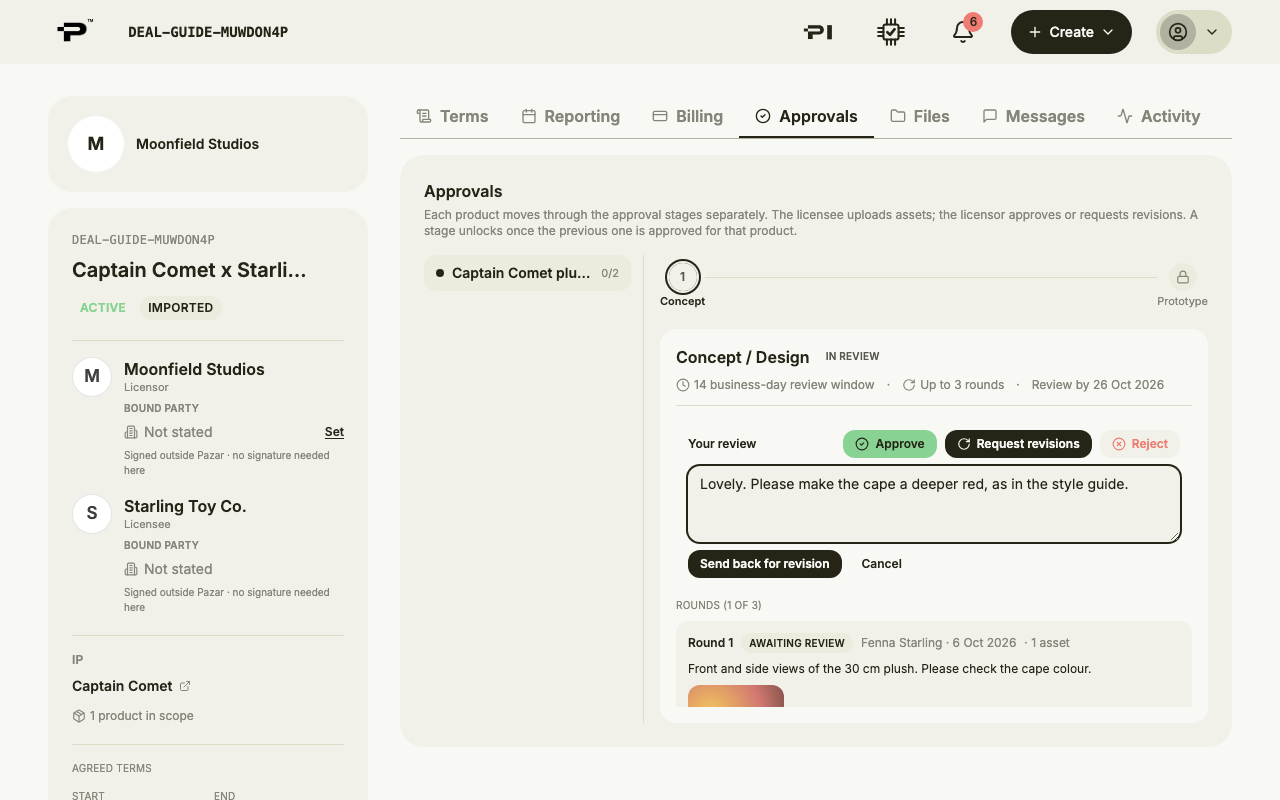 Only the organisation holding the Approver role on the profile can review.
 - 4
Licensee: send a revision
When revisions are requested, click Submit revision and upload the changed files. Each stage has a limited number of rounds.
- 5
Out of rounds
When a stage has no rounds left, the licensor can click Release another round to allow one more submission.
Still stuck? Contact us