Report and approve royalties
The licensee reports sales each period, the licensor approves the statement, and the invoice follows from it.
- 1
Open the Reporting tab
On a signed deal, open the Reporting tab. Reporting periods lists each period with its due date and status.
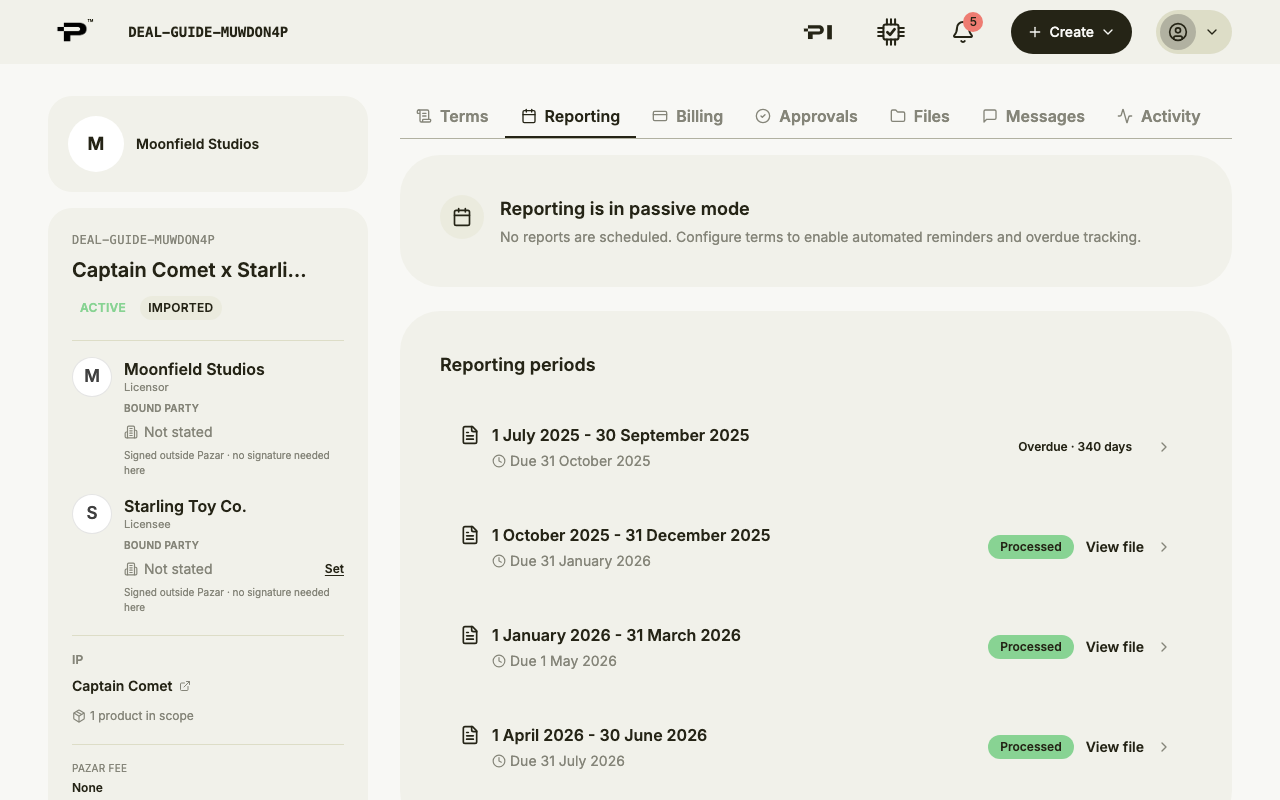 Only the organisation holding the Controller role submits and approves reports. Others can see them.
 - 2
Licensee: choose how to report
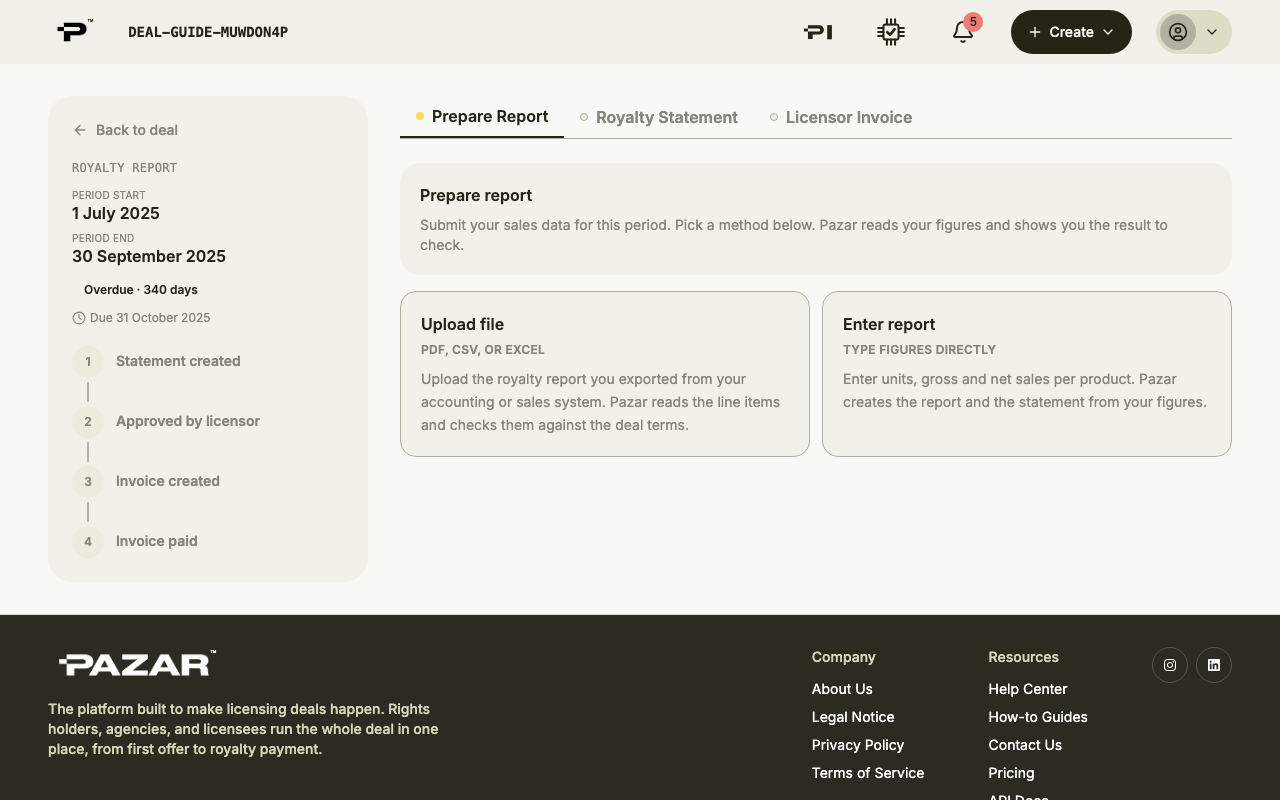
Open the period and go to Prepare Report. Upload file takes a PDF, CSV or Excel file; Enter report lets you type the figures. Both open once the period has ended.
- 3
Licensee: enter or upload the figures
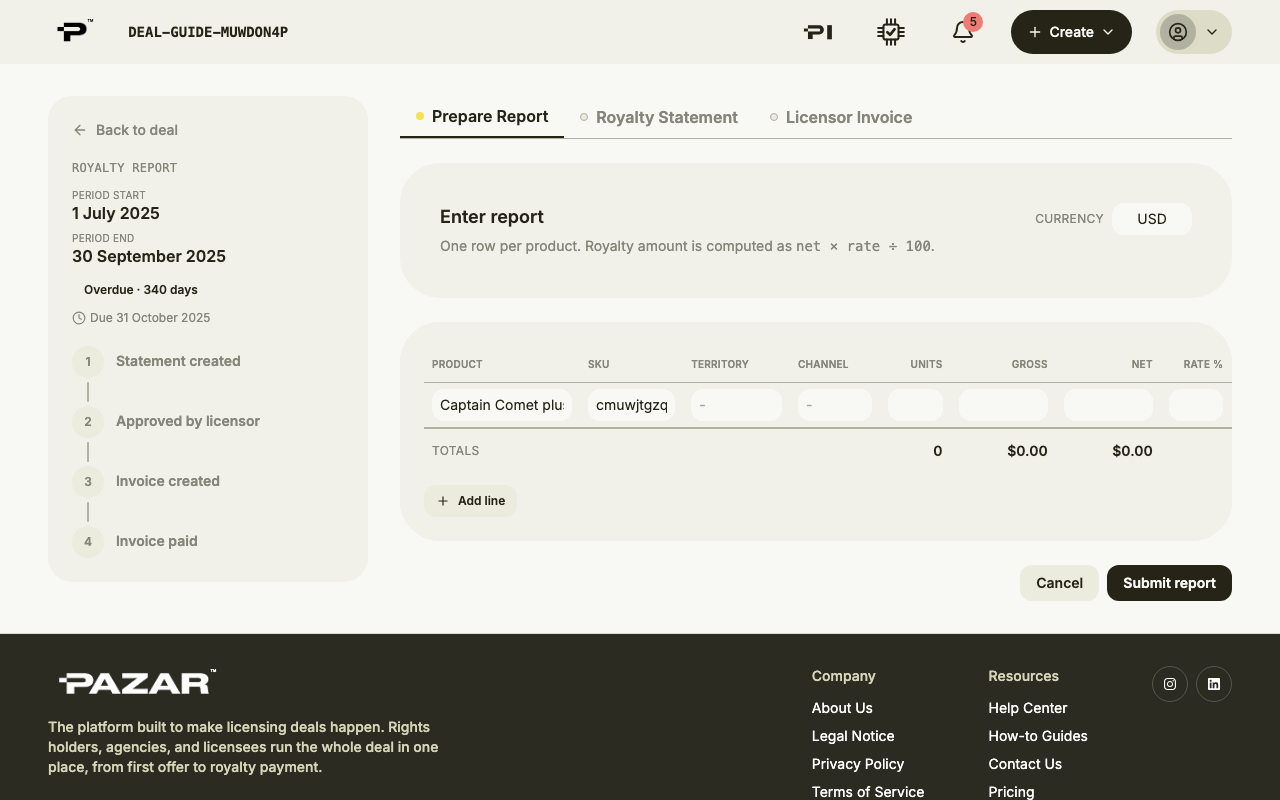
With Enter report, pick the currency, add a line per product with territory, channel, units, gross, net and rate, and click Submit report. An uploaded file is read for you, which takes a few minutes; then check the result under Check and confirm and click Confirm.
- 4
Licensor: approve the statement
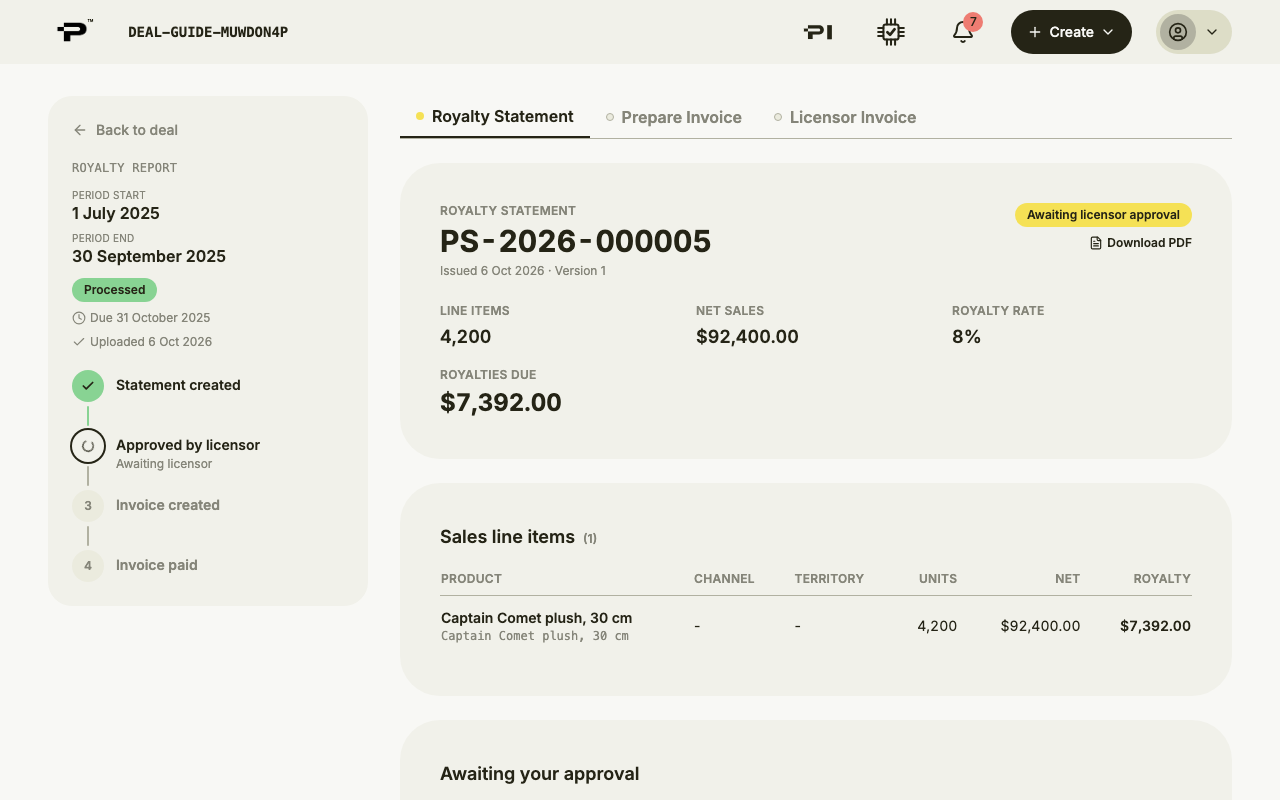
Open Royalty Statement. Check the figures and click Approve statement, or Dispute to send it back with notes for the licensee.
- 5
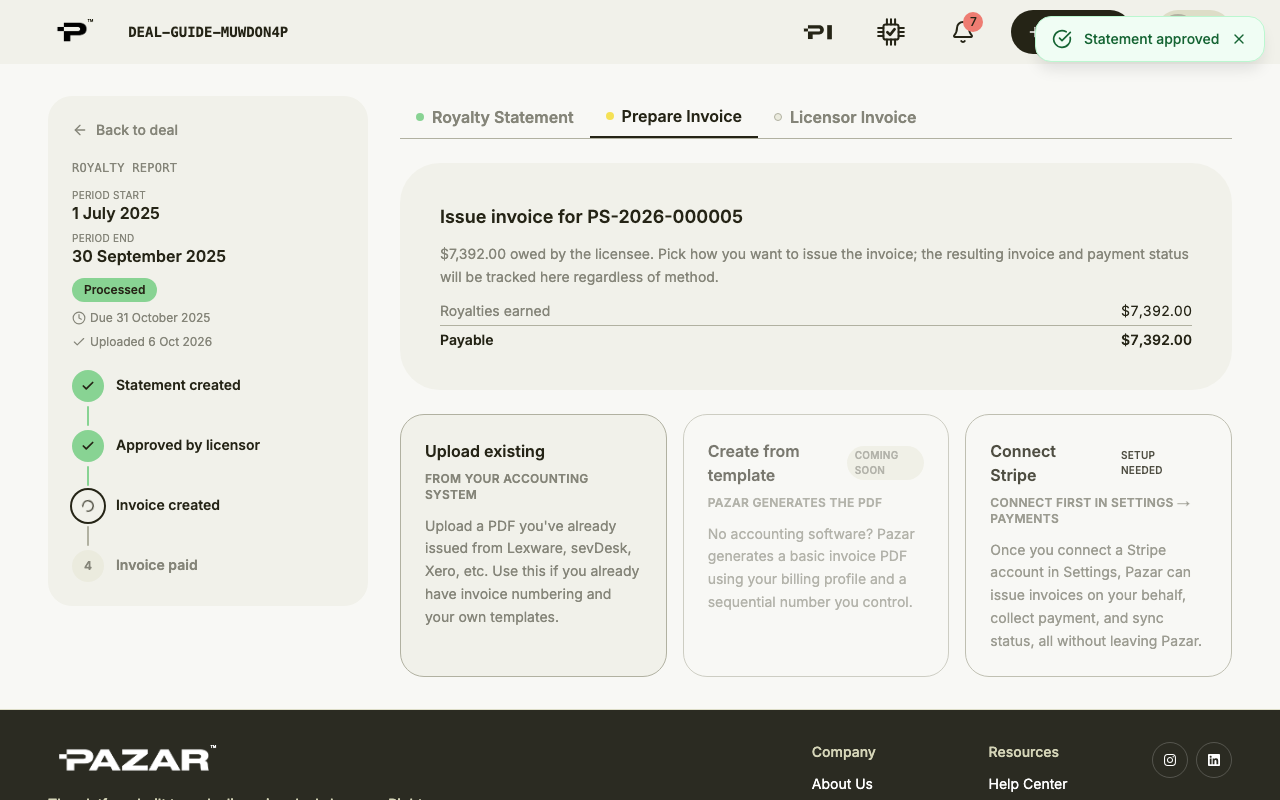
Licensor: issue the invoice
In Prepare Invoice, choose Upload existing, enter your invoice number and payment terms, add the invoice PDF and click Issue invoice. Mark it paid once the money arrives.
Still stuck? Contact us