Find your way around the dashboard
What the four dashboard tabs show, and where your IP and deals live.
- 1
Your profiles on the left
The Profiles list on the left holds every profile your organisation runs. Click New to add one. When another organisation shares a profile with you or invites you to one, it appears under Shared with you or Invited.
- 2
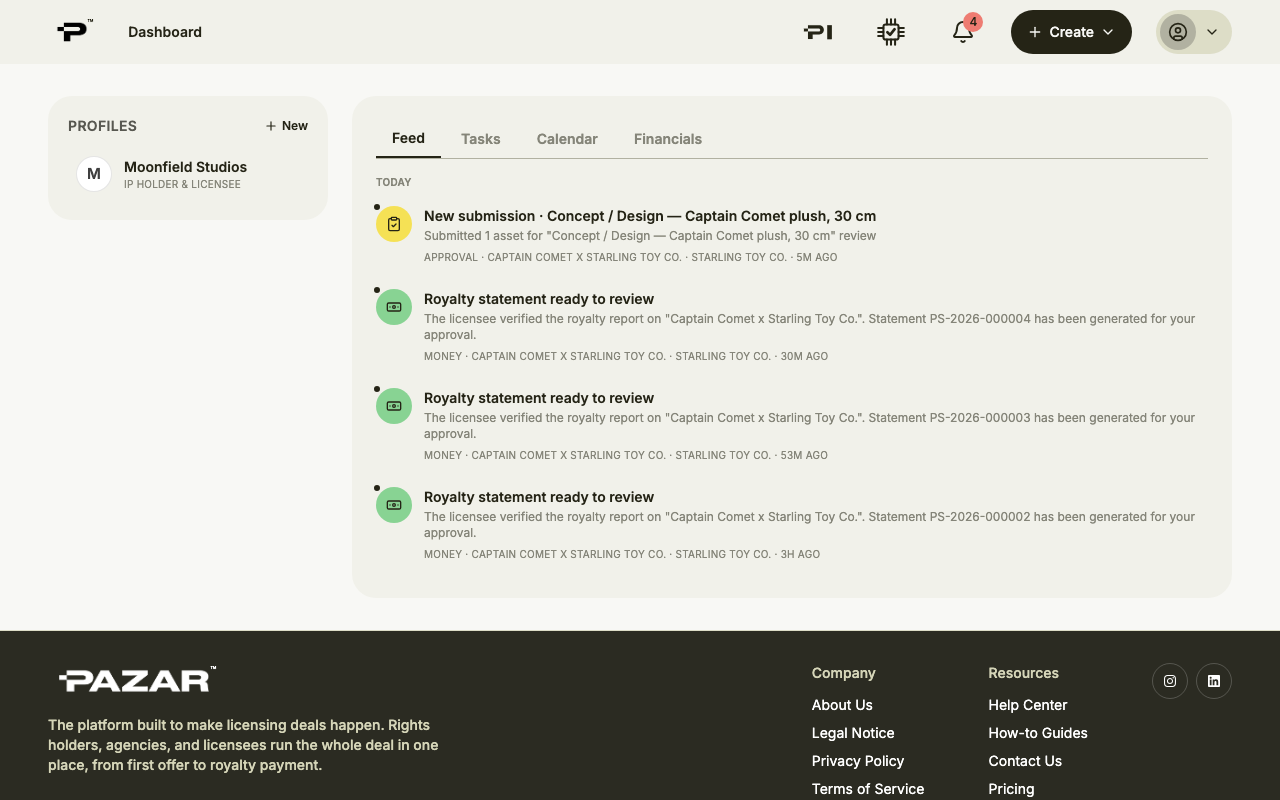
Feed
Feed is new activity across your organisation: invitations, negotiations, agreements, royalty reports and payments.
- 3
Tasks
Tasks splits into To do and Waiting on others. Reports, approvals, signatures, invoices and offers show up here when they need someone to act.
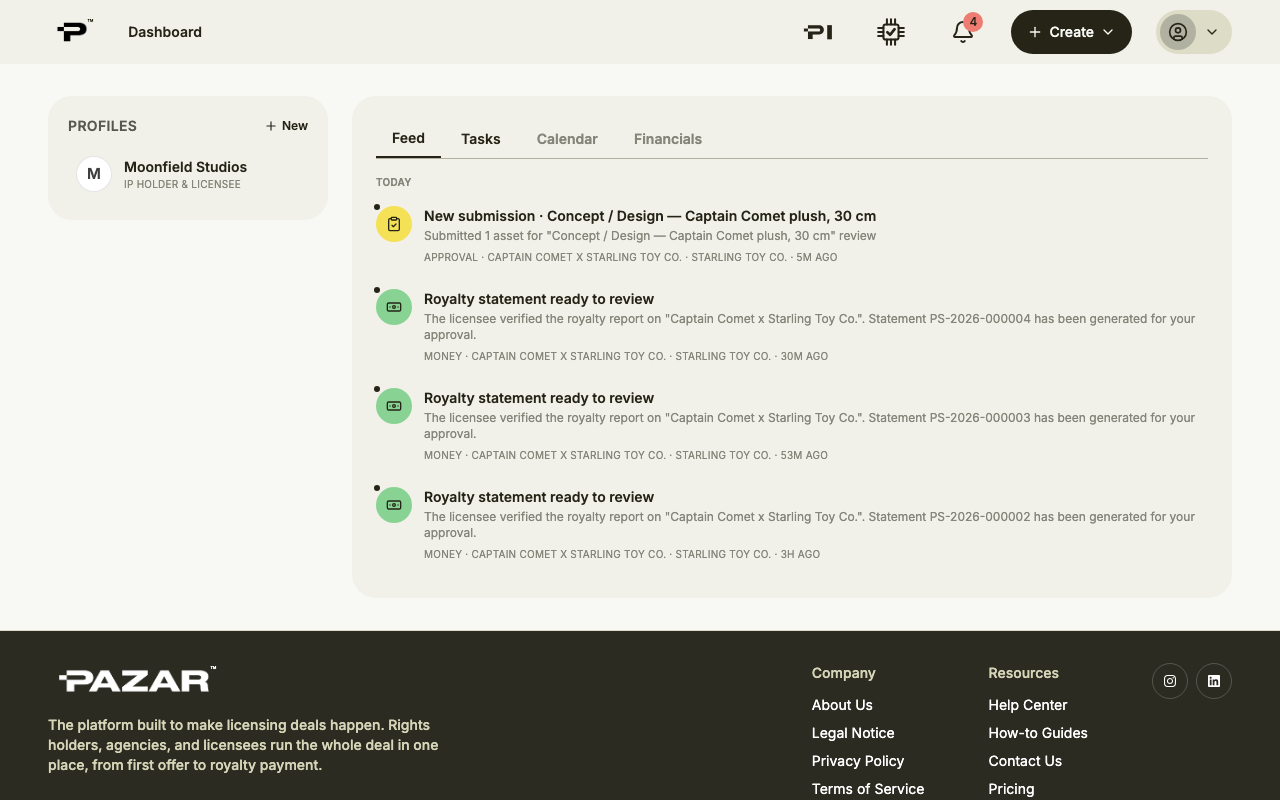 The number next to Tasks counts what is waiting on you.
 - 4
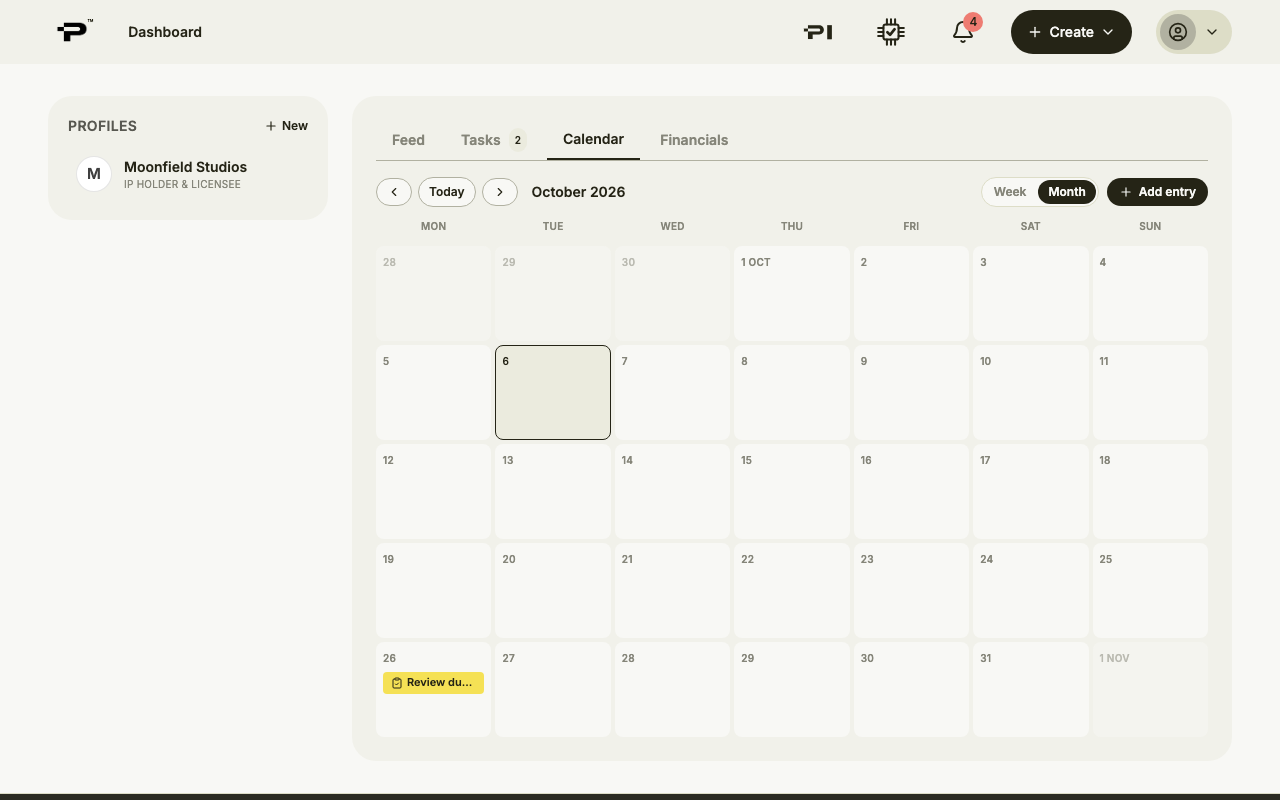
Calendar
Calendar shows your deal deadlines next to entries your team adds. Switch between Week and Month, jump back with Today, and use Add entry for anything of your own.
- 5
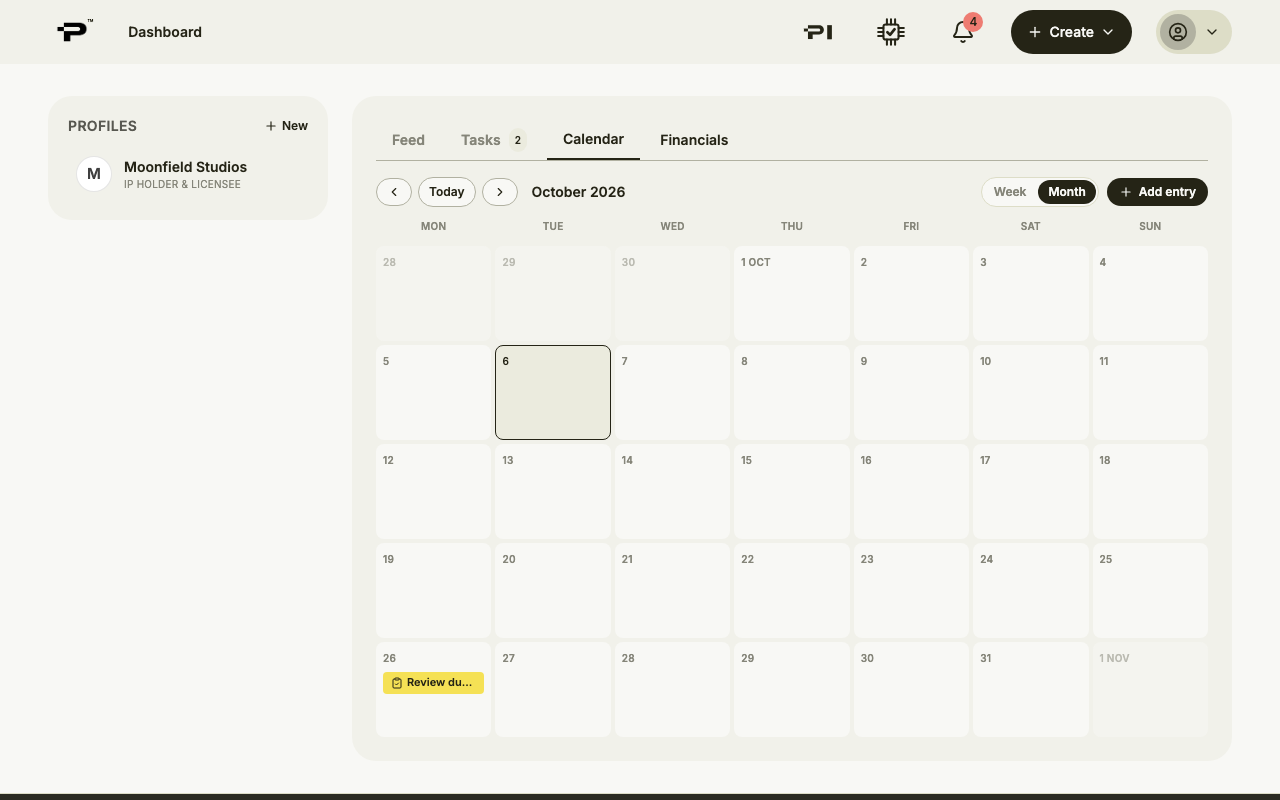
Financials
Financials shows money by year. Switch between Income and Costs. Payments appear once a deal is signed and its schedule is set, and royalties once they are invoiced.
- 6
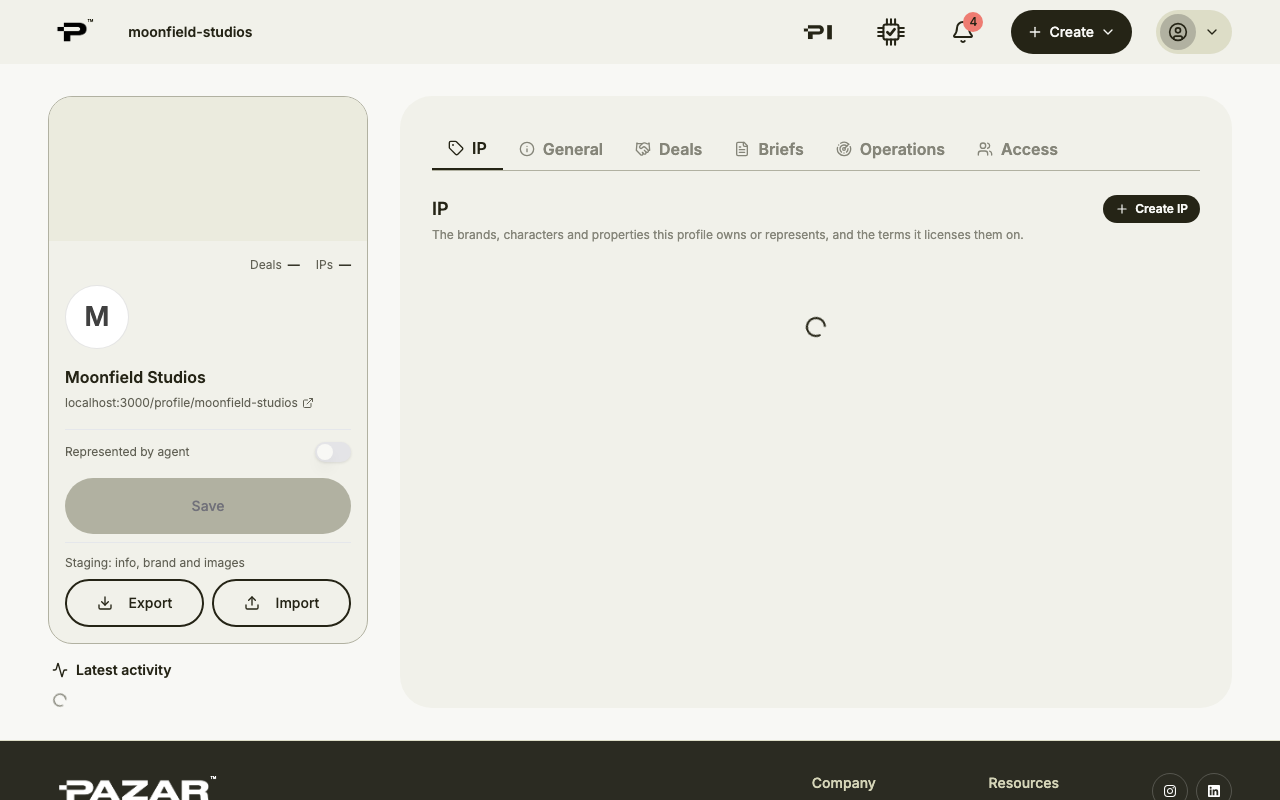
Your IP and deals are on the profile
Open a profile to work with it. Its page has the tabs IP, General, Deals, Briefs, Operations and Access.
Still stuck? Contact us